Add CreativeClaw to your AI assistant

Pick your client, connect the hosted MCP, and generate images, video, and speech without copying an API key.

Already connected? Log in to your account to manage credits, billing, and creations.

✓ Browser-based OAuth ✓ One shared asset library ✓ 100 free credits

Choose your AI client

Recommended

Install the Claude plugin

One install adds the connector and all CreativeClaw skills, and keeps them updated. Works on Claude web and Desktop.

  1. 1

    Copy the marketplace

    CreativeClawCo/creative-claw-marketplace
  2. 2

    Open Claude plugins

    Open Plugins

    Opens claude.ai/customize/plugins. In Desktop: Customize → Plugins.

  3. 3

    Add the marketplace

    Under Personal plugins, click + → Add marketplace, paste, and confirm.

  4. 4

    Install CreativeClaw

    Click Install on creative-claw. When Claude asks you to connect, log in with Gmail.

  5. ✓

    Done. Start a new chat and try a prompt below.

Plugins need a paid Claude plan (Pro, Max, Team or Enterprise). On Team and Enterprise, your admin may need to allow them. Claude's plugin guide

Free plan or no Plugins tab? Add the connector and skill manually
Step 1

Add the connector

Adds CreativeClaw to Claude web, Desktop, and mobile in one go.

  1. 1

    Copy this URL

    https://app.creativeclaw.co/mcp
  2. 2

    Open the Claude “Add connector” dialog

    Open Claude

    Opens claude.ai/customize/connectors with the “Add custom connector” modal ready.

  3. 3

    Paste the URL, name it, save

    Name Creative Claw
    URL https://app.creativeclaw.co/mcp

    Click Add, then Authenticate and log in with Gmail.

  4. ✓

    Connector added. Now add the skill below.

Step 2

Add the skill

Teaches Claude which model to use and how to prompt it. Strongly recommended.

  1. 1

    Download the skill

    creativeclaw-skill.zip

    Claude-ready ZIP · includes the skill and its references

  2. 2

    Open Claude skills

    Open Skills page

    Opens claude.ai/customize/skills.

  3. 3

    Upload the ZIP

    Click + → Create skill → Upload a skill, then select the downloaded ZIP.

  4. ✓

    Done. Ask Claude to make something below.

Best first test · low cost

Copy one prompt. Prove the connection.

Start with a single image so you can verify the full workflow before trying video.

Nano Banana 2 1 image 16 credits · about $0.16
Use Creative Claw to create a polished launch image for my product with Nano Banana 2. Ask me only for the product details you need, then generate one image.

Supported in ChatGPT, Codex, Claude, Claude Code, Grok Bot, Hermes, and OpenClaw. You receive 100 free credits. Check current pricing.

Your next move

Need a better starting point?

Browse real creator prompts, copy a brief, and let your newly connected assistant recreate it with the model you choose.

Explore example prompts
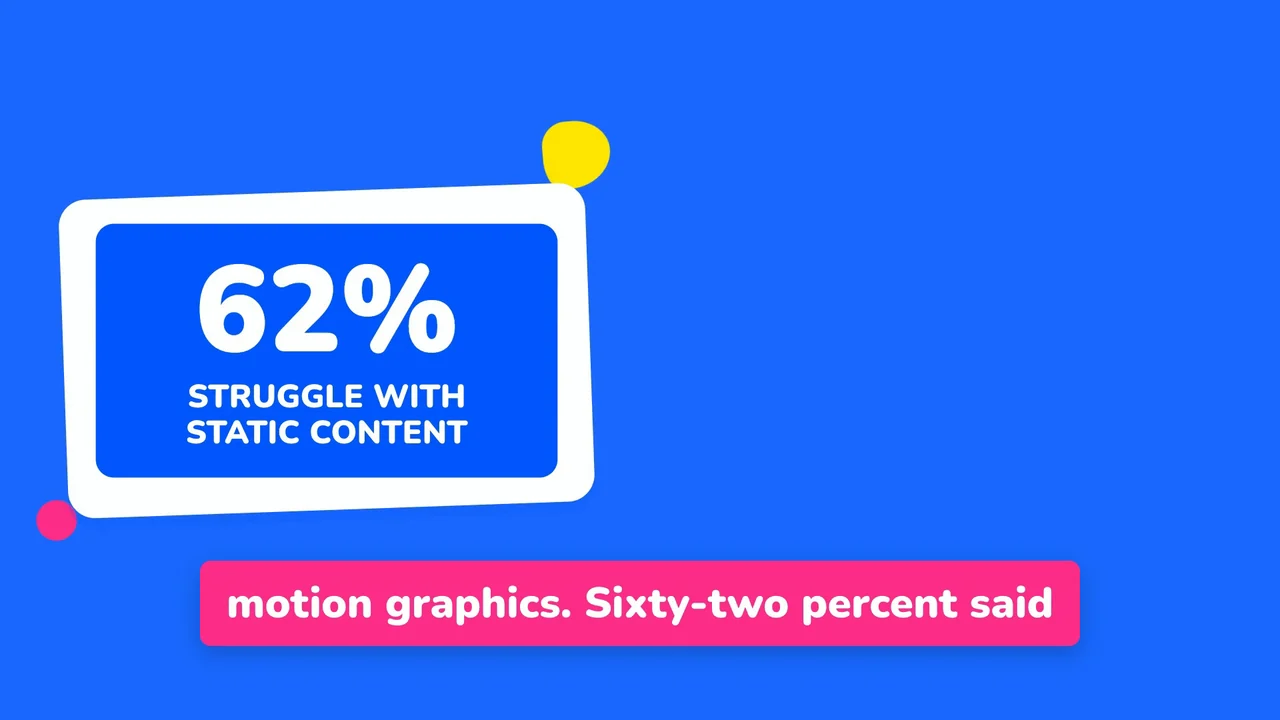
video

Play Mode HyperFrames Template

HyperFrames @heygen-com on GitHub

HyperFrames

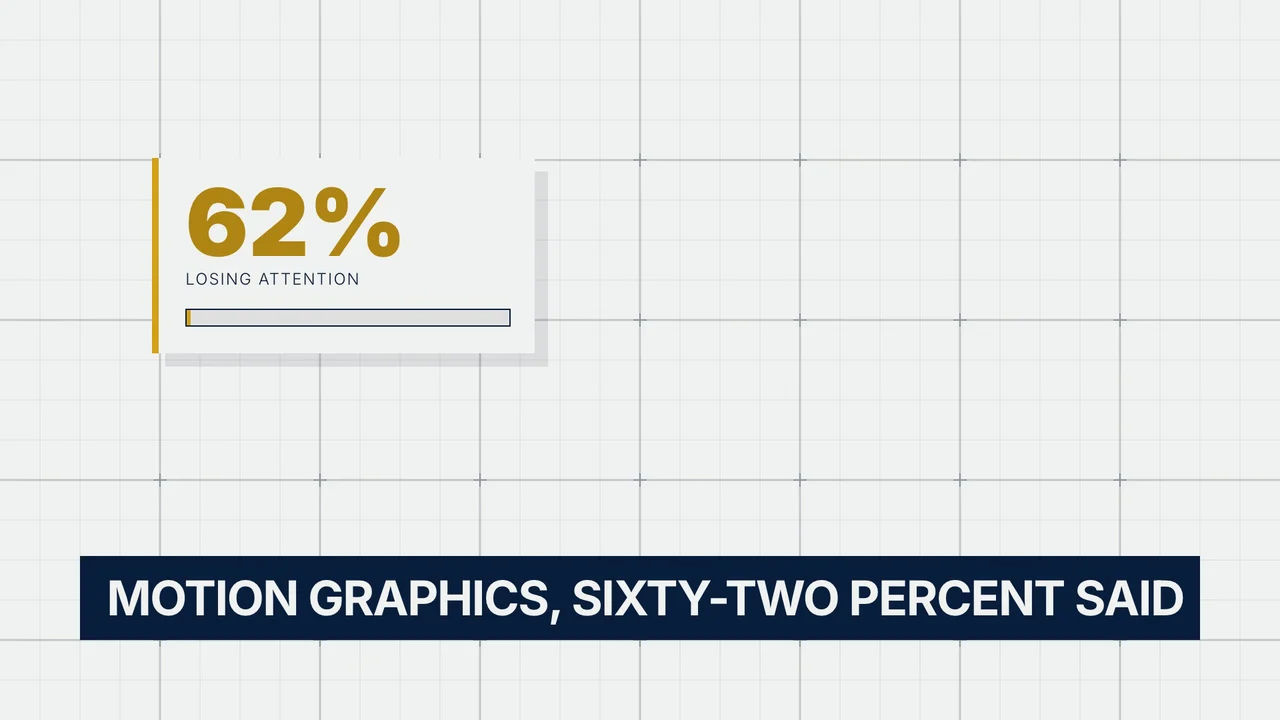
video

Swiss Grid HyperFrames Template

HyperFrames @heygen-com on GitHub

HyperFrames

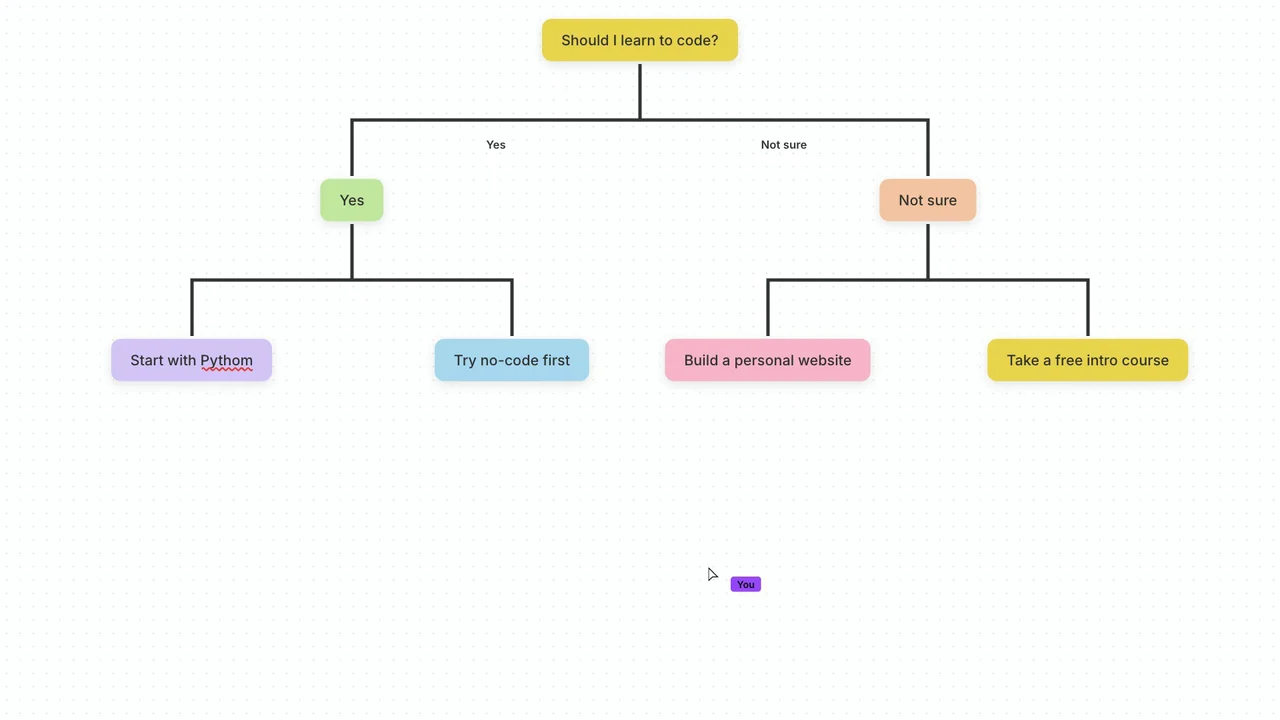
video

Decision Tree HyperFrames Template

HyperFrames @heygen-com on GitHub

HyperFrames

Connection troubleshooting

CreativeClaw is not listed

Confirm that you saved the connector or enabled the app, then start a new conversation or client session so the tool list refreshes.

Authentication did not finish

Return to the connector settings, choose Authenticate or Login again, and complete the browser flow before returning to the client.

The model is not being selected

Name CreativeClaw and the model in your request. Claude users should install the CreativeClaw plugin shown above (or the skill), then begin a new session.

Once connected, start with the image guide, the video guide, or review the live credit pricing.

Need help? Reach out at [email protected]