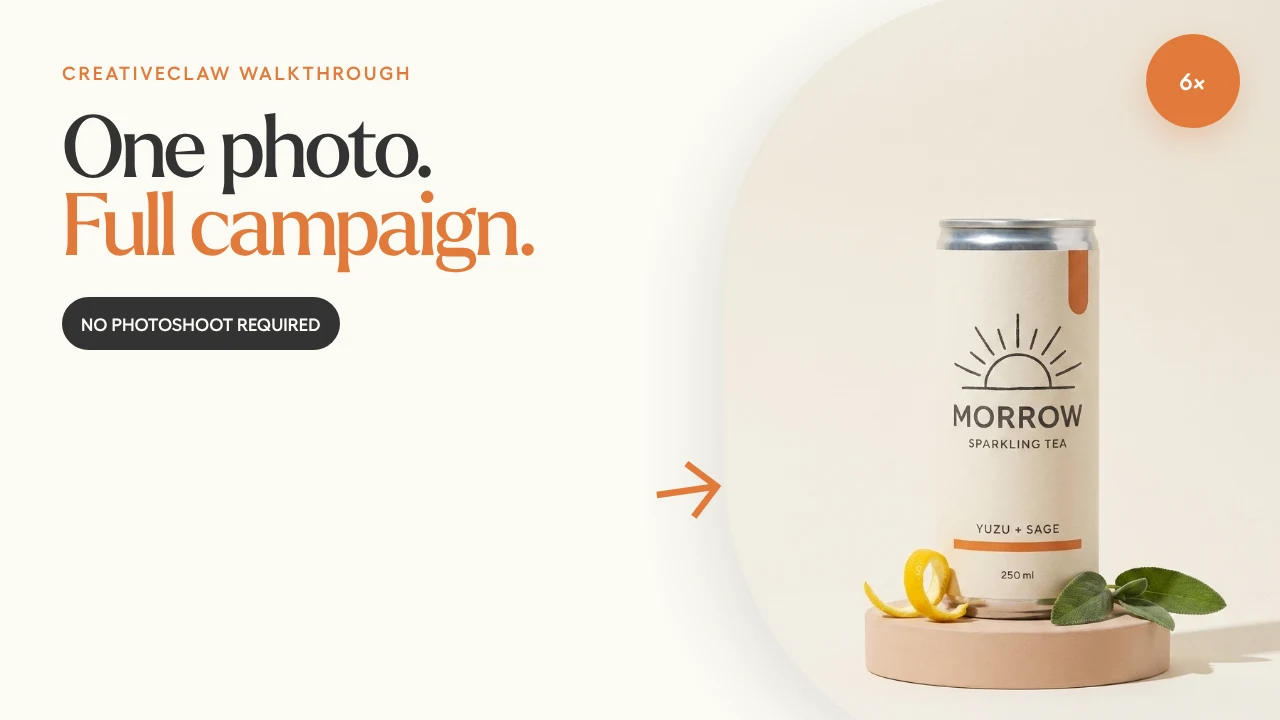
How to Turn One Product Photo into a Reusable Cutout Kit
Remove the background from a product image with CreativeClaw, inspect the transparent result, and reuse it across ecommerce, social, email, and presentation layouts.
What you'll make
A transparent product asset plus a repeatable QA checklist for edges, internal holes, shadows, and reuse across multiple layouts.
Background removal looks like a tiny utility. In a campaign, it is the step that turns one finished image into a reusable building block.
1. Start with enough edge information
The source does not need a white background, but it does need:
- Sharp product edges
- Useful contrast between subject and scene
- No heavy motion blur
- Enough resolution for the final placement
- No accidental crop through important details
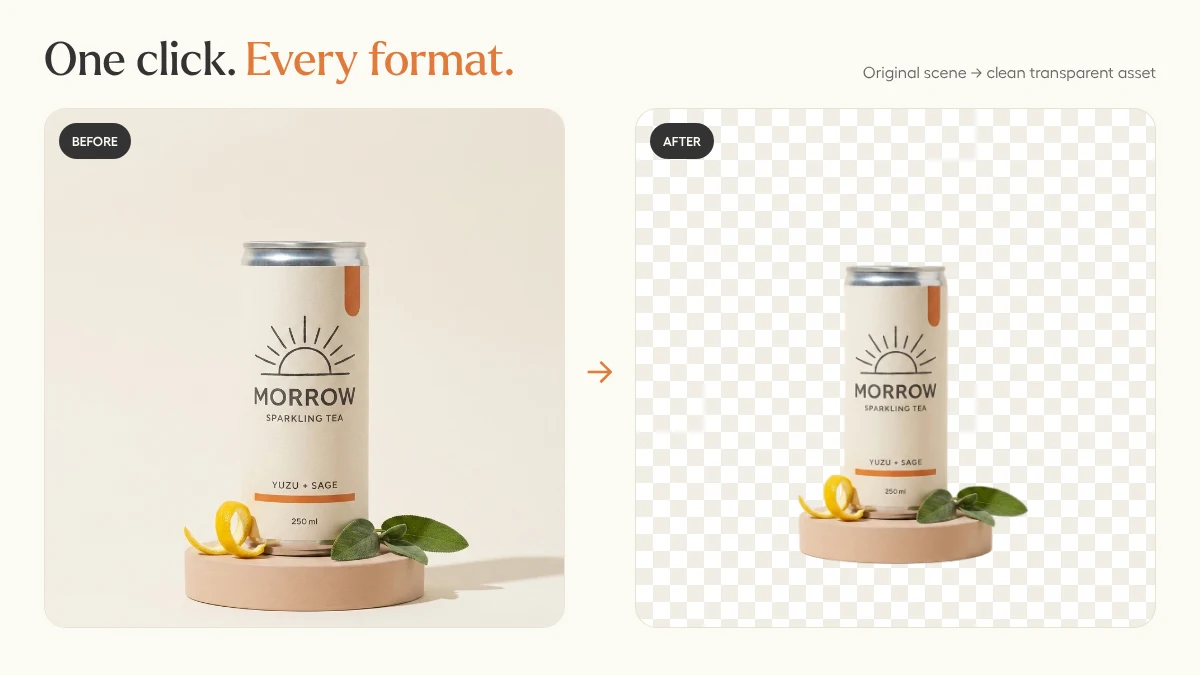
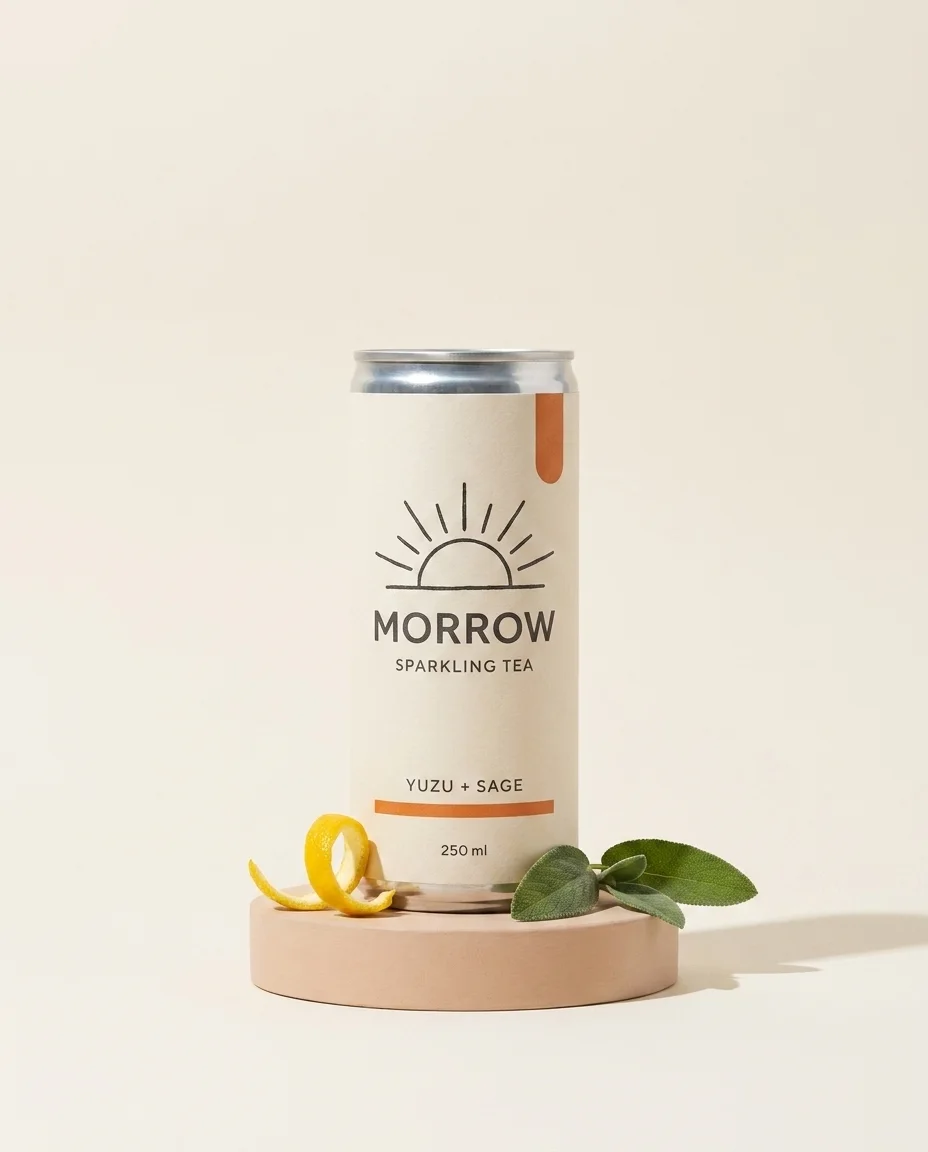
Our source includes the can, plinth, yuzu peel, and sage. The background-removal tool correctly treated that whole arrangement as the foreground subject.
2. Ask for the cheap operation first
If the goal is simply transparency, use the dedicated background-removal tool. A full image-editing model is slower, less deterministic, and may redraw details you wanted to preserve.
Find the asset named walkthrough-morrow-packshot and remove its background.
Keep the complete can, plinth, yuzu peel, sage leaves, and natural foreground
shadow. Return a transparent image and save it as walkthrough-morrow-cutout.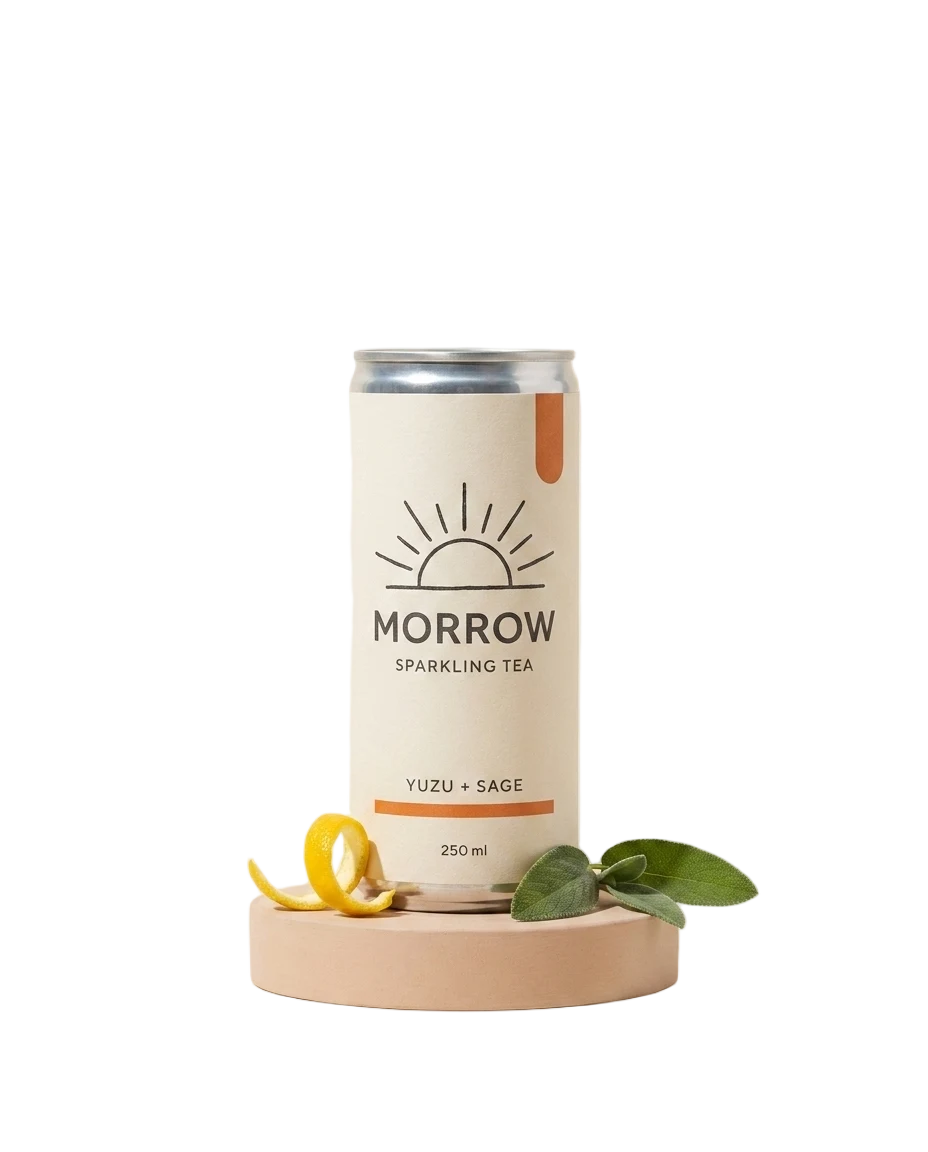
3. Inspect on more than one background
A cutout can look perfect on a checkerboard and fail on a dark slide. Check:
- Bright background for dark halos
- Dark background for pale fringes
- Saturated background for semi-transparent contamination
- 200% zoom for small missing edges
- Internal holes, handles, hair, glass, and reflective surfaces
Also decide whether the grounding shadow belongs in the reusable asset. For a floating ecommerce cutout, remove it. For campaign layouts where the product should feel planted, a soft shadow can help.
4. Reuse it with deterministic layout
Once the cutout is approved, Claude can place it into HTML-rendered banners without asking an image model to redraw the package:
Use my MORROW cutout in a 1200×630 launch banner.
Cream background, charcoal headline, warm-orange CTA, product on the right.
Render the layout as HTML so the typography and spacing stay exact.
This separation is powerful: AI creates or edits the product imagery; HTML controls the copy and layout.
The prompt to try
Use CreativeClaw to turn this product photo into a reusable cutout kit.
Remove the background, inspect the result on light and dark surfaces, and
tell me whether props or shadows should be kept. Save the approved transparent
asset by name. Then render three layouts from that same asset: ecommerce square,
email header, and presentation cover. Do not regenerate the product.
Remove once. Reuse everywhere.
Built with